YouTube Free · no signup

YouTube Subtitle Extractor

Extract subtitles and captions from any YouTube video.

Paste a YouTube video URL and this tool fetches the video's captions — manual or auto-generated — and hands you a clean transcript with the timing codes stripped out. It lets you choose from whatever caption languages the video publishes, works on standard videos and Shorts, and needs no API key. Use it to repurpose videos into blog posts, feed transcripts into translation, build accessible text alternatives, or turn spoken content into keyword-rich, searchable copy.

Updated Krawly Editorial TeamIn-house engineers, writers & reviewers
Explore More Free Tools

Discover 150+ free tools for web scraping, SEO analysis, OSINT, and more. 30 free uses every day — no signup required.

150+ Free Tools No Signup Required JSON / CSV / Excel 30 Uses / Day
Quick answer

Paste a YouTube video URL and this tool fetches the video's captions — manual or auto-generated — and hands you a clean transcript with the timing codes stripped out. It lets you choose from whatever caption languages the video publishes, works on standard videos and Shorts, and needs no API key. Use it to repurpose videos into blog posts, feed transcripts into translation, build accessible text alternatives, or turn spoken content into keyword-rich, searchable copy.

What is YouTube Subtitle Extractor?

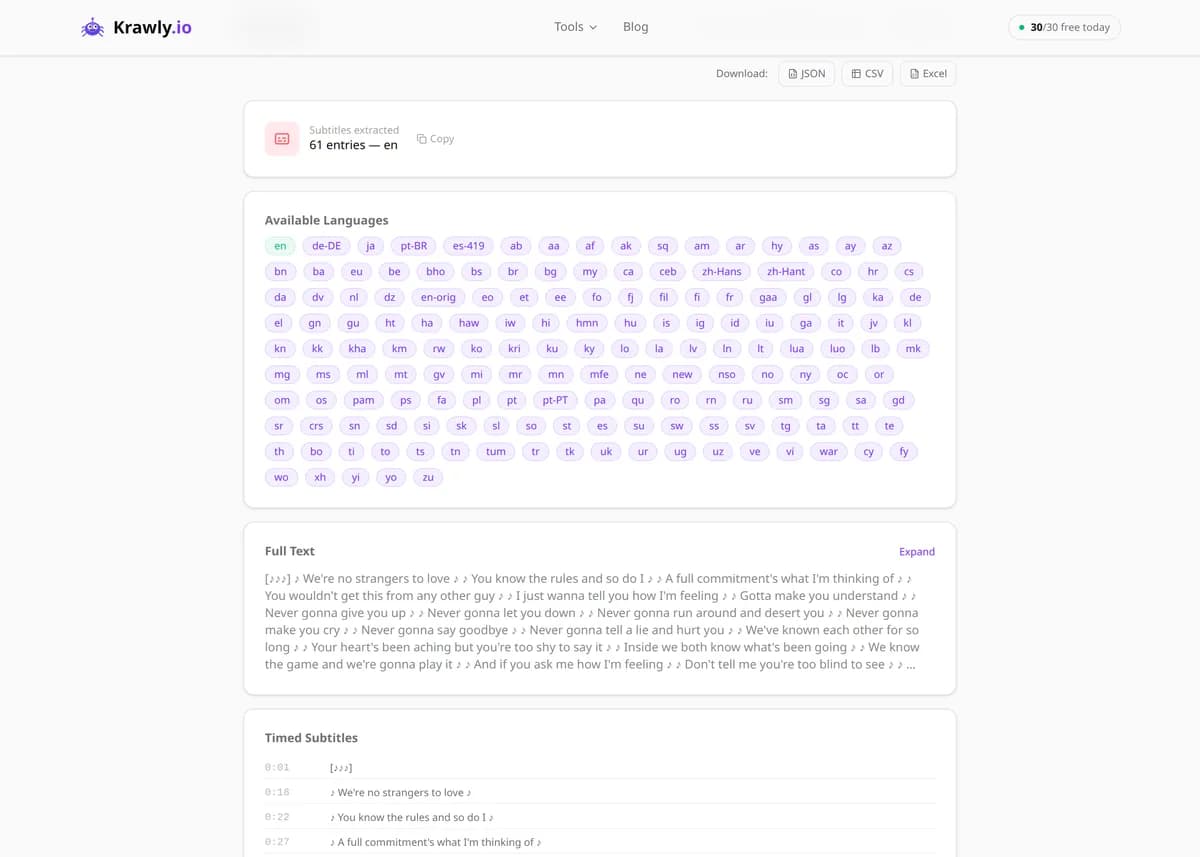
The YouTube Subtitle Extractor downloads the captions from any public YouTube video and returns them as clean, readable text. It supports both manually uploaded (human-written) subtitles and YouTube's auto-generated captions, in whatever languages the video offers. Instead of watching a video to transcribe it, you paste a URL, pick a language, and get the full transcript in seconds.

How to use YouTube Subtitle Extractor

  1. 1

    Copy the video URL

    Take the link of any public YouTube video that has captions — the CC badge on the player is a good sign, but many videos have auto-captions even without it.

  2. 2

    Paste and detect languages

    Drop the URL into the tool. It reads which caption tracks the video offers, distinguishing manually uploaded tracks from auto-generated ones.

  3. 3

    Pick your language

    Choose the caption track you want. If the video only has auto-generated captions, those are still available — just be aware they're machine transcripts.

  4. 4

    Extract and copy the transcript

    The tool downloads the track and returns the text with timestamps stripped, ready to copy into a document, translator, or CMS.

Try it when you need to…

  • Try it when you want to turn a 30-minute talk into a blog post without transcribing it by hand
  • Try it when you need the source transcript of a foreign-language video to feed into a translator
  • Try it when you're building an accessible text version of a video for readers who can't or won't watch it

Use cases

  • Content repurposing — turn a video's transcript into a blog post, newsletter, or LinkedIn article
  • Translation — pull the source-language transcript as the starting point for subtitling or localization
  • Accessibility — generate a text transcript so deaf and hard-of-hearing readers can access the content
  • Research and note-taking — extract lectures, interviews, and talks into searchable text you can quote and cite
  • SEO — convert spoken content into indexable, keyword-rich page copy that search engines can read

Key features

Extracts both manually uploaded captions and YouTube's auto-generated captions
Language selection — choose any caption track the video publishes
Clean text output with timing codes and cue formatting removed
Works with standard video URLs, youtu.be links, and Shorts
Fast extraction — full transcripts returned in seconds, no API key required

Tips & best practices

Prefer manual captions over auto-generated ones whenever both exist. Human-uploaded tracks include correct punctuation, capitalization, and speaker intent, while auto-captions run words together and mangle names, jargon, and homophones.

Auto-generated captions have no punctuation baked in — YouTube's speech model produces a running stream of words. If you're repurposing that text, plan to re-paragraph and re-punctuate it before publishing.

Caption availability is language-specific: a video might have manual English subtitles but only auto-generated captions in other languages. Auto-translated tracks are machine translations of the auto-transcript, so quality drops twice over.

Some videos genuinely have no captions at all — very short clips, music videos, or brand-new uploads where auto-captioning hasn't finished processing yet. In those cases there's simply no track to extract.

Frequently asked questions

Yes. It extracts both manually uploaded captions and YouTube's automatic speech-recognition captions. When both exist for a language, manual tracks are preferred because they're more accurate and properly punctuated.

Any caption track the video actually publishes. That varies per video: some offer many manual languages, others only an auto-generated track in the spoken language. You pick from whatever the video makes available.

The default output is clean, timing-free text meant for reading and repurposing. The underlying caption files (VTT/SRT/XML) do contain timing, so timestamped formats can be available depending on the video's tracks.

That's a sign you got an auto-generated track. YouTube's speech recognition outputs a continuous word stream without sentence punctuation. Manual captions, when available, read cleanly — otherwise you'll need to punctuate the auto-transcript yourself.

Some videos have no captions of any kind — often very short clips, music-only content, or freshly uploaded videos where auto-captioning hasn't finished processing yet. If no track exists, there's nothing to download.

Reasonably good for clear, single-speaker English speech, but they struggle with heavy accents, background noise, crosstalk, proper nouns, and technical jargon. Always proofread auto-captions before publishing them as your own content.