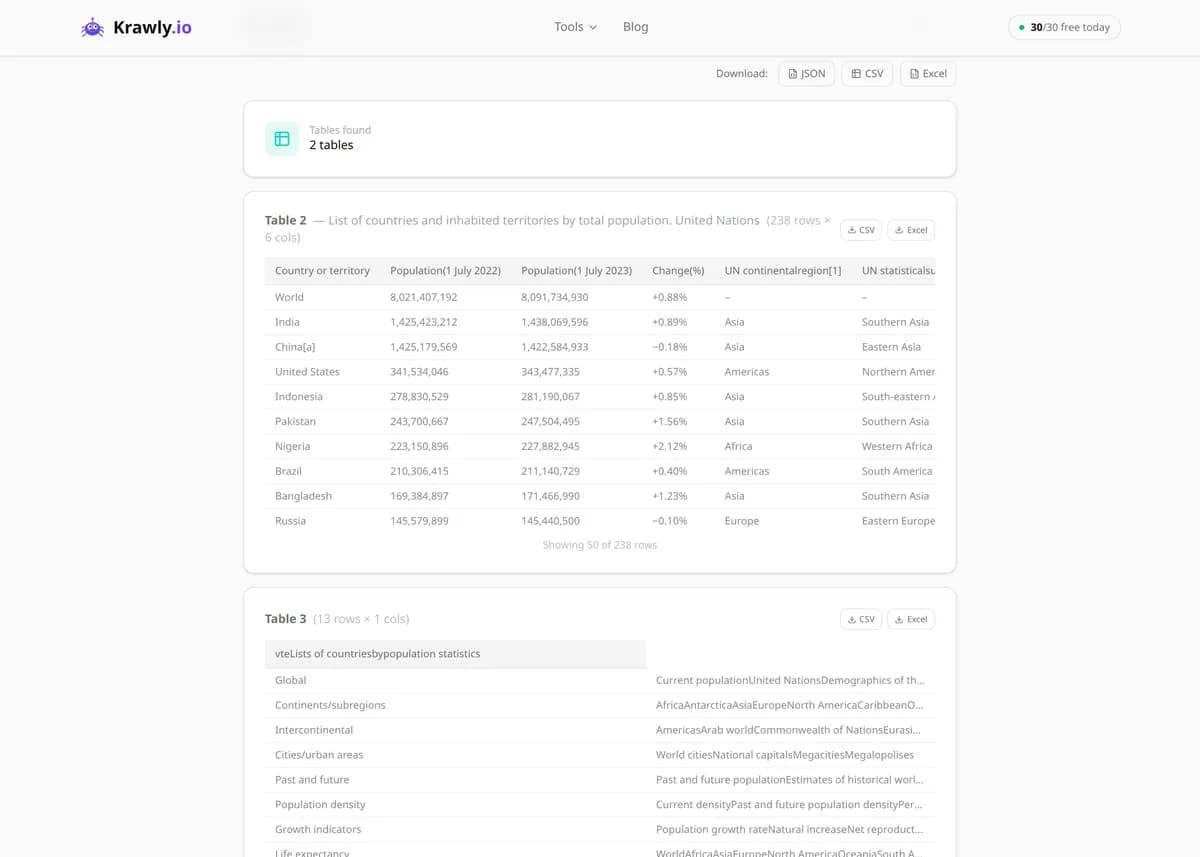
Extract HTML tables from any webpage and download as CSV/Excel.
Paste a URL and the HTML Table Extractor pulls every table on the page into structured JSON, preserving header rows and handling merged cells so the columns line up the way they do on screen. It's built to extract data from HTML table markup — pricing grids, financial tables, sports stats, Wikipedia data, and comparison charts — without hand-copying cell by cell. Each table on the page is returned separately, so a page with five tables gives you five clean datasets ready to import into Google Sheets, Excel, or a pandas DataFrame.
63 Free Tools No Signup Required JSON / CSV / Excel 30 Uses / Day
Quick answer
Paste a URL and the HTML Table Extractor pulls every table on the page into structured JSON, preserving header rows and handling merged cells so the columns line up the way they do on screen. It's built to extract data from HTML table markup — pricing grids, financial tables, sports stats, Wikipedia data, and comparison charts — without hand-copying cell by cell. Each table on the page is returned separately, so a page with five tables gives you five clean datasets ready to import into Google Sheets, Excel, or a pandas DataFrame.
What is HTML Table Extractor?
The HTML Table Extractor is an HTML table scraper: it scans any webpage, finds every <table> element in the HTML, and converts each one into clean, structured data you can actually work with. It reads header rows, body cells, and merged cells (colspan/rowspan), then returns the result as JSON so you can drop it straight into a spreadsheet, database, or analysis script. Instead of copy-pasting a pricing grid or a statistics table into Excel and watching the columns collapse, you get a faithful, machine-readable copy of the table's real structure in one click.
How to use HTML Table Extractor
1
Paste the page URL
Enter the full URL of the page that contains the table you want — a pricing page, a stats page, or a Wikipedia article. The tool fetches the live HTML and locates every table on it.
2
Run the extraction
Click extract and the tool parses each table, reads its header row, and resolves any merged cells so the data keeps its original shape instead of collapsing into a single column.
3
Pick the right table
Pages often contain several tables — layout tables, footers, and the one you actually want. Each detected table is returned separately, so scan the previews and grab the dataset that matches.
4
Export the JSON
Copy or download the JSON output and import it into Google Sheets, Excel (via a JSON import), a database, or a pandas DataFrame with pd.read_json() for immediate analysis.
Try it when you need to…
Try it when you need to copy a large pricing or comparison table into a spreadsheet without the columns collapsing on paste
Try it when you're building a dataset from tables spread across Wikipedia, government portals, or reference sites
Try it when a page has multiple tables and you want each one returned cleanly as separate JSON rather than one tangled blob
Use cases
Data analysis — pull statistics, survey results, and reference tables into pandas or Excel for research
Price monitoring — extract competitor pricing and plan-comparison tables on a schedule
Finance — capture exchange rates, stock quotes, and historical tables from data portals
Academic research — collect tabular datasets from papers, Wikipedia, and government pages
Content migration — move legacy HTML tables from an old CMS into a new platform or database
Key features
✓Automatically detects and returns every table on the page, each as a separate dataset
✓Preserves the header row so column names carry through to your export
✓Correctly resolves colspan and rowspan so merged cells map to the right columns
✓Outputs clean JSON (array of row objects) ready for spreadsheets, databases, or code
✓Handles complex and nested tables without flattening them into unreadable text
Tips & best practices
If a table renders in the browser but the extractor returns nothing, it's almost certainly built by JavaScript after page load — the tool reads the initial HTML source, so look for a static or API-backed version of the data instead.
Some sites use nested <table> elements purely for layout. If you get more tables than expected, identify the real one by its header row and ignore the wrapper tables.
Percentage, currency, and date cells come out as text exactly as displayed — clean and cast them (strip $, %, commas) before running calculations in your spreadsheet or script.
For tables that paginate (page 1, 2, 3…), extract each page's URL separately and concatenate the JSON — the tool reads one page's HTML at a time.
Frequently asked questions
It extracts tables from the page's initial HTML source. If a table is built client-side by React, Vue, or a data-grid library after the page loads, it won't appear in the source and the tool can't reach it. In that case, look for the underlying API endpoint the page calls, or a static export of the same data.
The parser reads colspan and rowspan attributes and expands them so each logical cell lands in the correct row and column. A header that spans three columns, for example, is mapped across those three columns rather than being dropped or misaligned.
All of them. Every <table> element on the page is detected and returned as a separate dataset, so a page with a pricing table, a spec table, and a footer table gives you three distinct results to choose from.
Structured JSON — typically an array of row objects keyed by the header labels — which imports cleanly into Google Sheets, Excel, databases, or code. From Python you can load it directly with pandas using pd.read_json() or pd.DataFrame().
Cell values are returned as the text shown on the page, including currency symbols, percent signs, and thousands separators. That keeps the display faithful, but you should strip those characters and cast the values before doing math on them.
No. The tool only fetches publicly accessible HTML. Pages that require authentication, a session cookie, or a paid subscription can't be reached, and no private data is accessed.
Paste the page URL and run the extractor. It finds every <table> element, keeps the header row, resolves merged cells, and returns each table separately. Besides JSON, the results can be downloaded as CSV or Excel, which is the quickest way to get table data out of a page and into Google Sheets, Excel, or a database.
For one-off jobs, usually. Web scraping tables in code means fetching the page, parsing the markup, and handling colspan and rowspan yourself; here that work is already done, so you can scrape HTML table data without writing a parser. If the data feeds a pipeline, export the JSON and load it in pandas or your own script.