Analysis Free · no signup

WordPress Plugin Detector

Detect WordPress plugins installed on a site by checking paths, HTML markers, and known signatures.

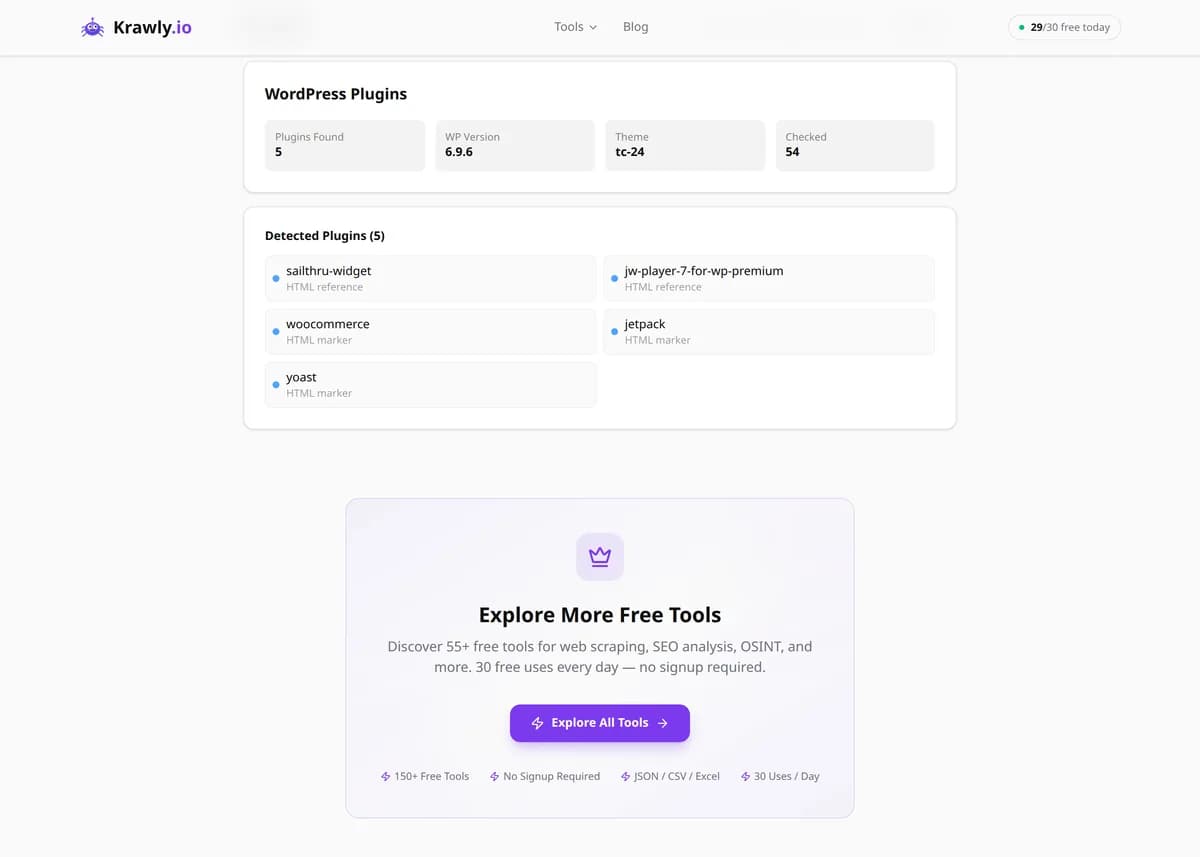
Enter a WordPress URL and the detector fetches the page, verifies it's WordPress, and then identifies plugins by the fingerprints they leave in the HTML: enqueued CSS/JS files under /wp-content/plugins/, distinctive HTML comments and CSS classes, inline configuration objects, and readme files at predictable paths. It reports the active theme and the plugins it can confidently identify, along with version numbers where those are exposed. It's the fastest way to see how a WordPress site was built without touching the admin panel.

Updated Krawly Editorial TeamIn-house engineers, writers & reviewers
Explore More Free Tools

Discover 150+ free tools for web scraping, SEO analysis, OSINT, and more. 30 free uses every day — no signup required.

150+ Free Tools No Signup Required JSON / CSV / Excel 30 Uses / Day
Quick answer

Enter a WordPress URL and the detector fetches the page, verifies it's WordPress, and then identifies plugins by the fingerprints they leave in the HTML: enqueued CSS/JS files under /wp-content/plugins/, distinctive HTML comments and CSS classes, inline configuration objects, and readme files at predictable paths. It reports the active theme and the plugins it can confidently identify, along with version numbers where those are exposed. It's the fastest way to see how a WordPress site was built without touching the admin panel.

What is WordPress Plugin Detector?

The WordPress Plugin Detector scans a WordPress site to reveal which plugins and theme it runs. It first confirms the site is actually WordPress, then combs the HTML for the tell-tale /wp-content/plugins/ asset paths, matches known code markers and script handles left behind by popular plugins, and probes common plugin readme and asset locations. The result is a list of the site's likely plugin footprint — invaluable for competitive research, agency audits, and spotting outdated components with known vulnerabilities.

How to use WordPress Plugin Detector

  1. 1

    Enter the WordPress URL

    Paste the site's homepage or any content page. The tool first checks for WordPress signatures — /wp-content/, /wp-includes/, the generator meta tag — and tells you immediately if the site runs a different CMS.

  2. 2

    Let it fingerprint the assets

    The scanner reads every stylesheet and script the page loads, extracting the plugin slug from paths like /wp-content/plugins/woocommerce/ and matching inline markers left by known plugins.

  3. 3

    Review detected plugins and theme

    You get a list of identified plugins plus the active theme. Where a version is exposed, note it — that's the most security-relevant field, since old versions are where known vulnerabilities live.

  4. 4

    Cross-check anything critical

    Detection reflects only plugins that leave a visible front-end footprint. For a full audit, treat the list as a strong starting point and confirm admin-only plugins directly if you have access.

Try it when you need to…

  • Try it when a competitor's WordPress site has a slick booking or membership feature and you want to know which plugin delivers it
  • Try it when you inherit a client site with no documentation and need to map its plugin stack before making changes
  • Try it when auditing your own portfolio of sites to catch any running a plugin version with a published vulnerability

Use cases

  • Competitive research — discover which SEO, caching, form, and page-builder plugins a rival WordPress site relies on
  • Security auditing — flag an outdated plugin version with a public CVE before an attacker finds it first
  • Agency inheritance — map an inherited client site's plugin stack before you touch a single setting
  • Buyer due diligence — vet the plugin footprint of a WordPress site or business you're considering acquiring
  • Learning by example — see how a site you admire achieved a specific feature so you can replicate it with the same plugin

Key features

Confirms WordPress first, then scans — returns a clear message if the site isn't WordPress
50+ plugin fingerprints matched via asset paths, code markers, and script handles
Active theme detection from /wp-content/themes/ references
Version identification where plugins expose it in readme files, asset query strings, or meta tags
Multiple detection methods combined so a plugin that hides one signal is often caught by another

Tips & best practices

Detection is front-end only. Plugins that run purely in the admin area or backend — backup tools, some security hardening plugins, migration utilities — load no public assets and are effectively invisible to any external scanner, so a short list doesn't mean a lean site.

Version numbers leak through asset cache-busting query strings (style.css?ver=6.2.1) and plugin readme.txt files. Security plugins like Wordfence often strip the ver query string and block readme access specifically to deny attackers this reconnaissance — so a missing version can itself be a sign the site is hardened.

Aggressive caching and optimization plugins (WP Rocket, Autoptimize) concatenate and minify plugin assets into merged bundles with renamed paths, which erases the original /plugins/slug/ fingerprint. A well-optimized site can therefore appear to run fewer plugins than it actually does.

The active theme is a strong pivot for identification: a child theme's name often reveals the parent framework (Divi, Astra, GeneratePress), which tells you the whole page-building approach even when individual builder plugins are obfuscated.

Frequently asked questions

Yes. The tool first checks for WordPress signatures such as /wp-content/ and /wp-includes/ paths and the generator meta tag. If the target runs Joomla, Shopify, Wix, or any other platform, it returns a message saying the site isn't WordPress rather than guessing.

Plugins leave a public footprint. Their CSS and JavaScript are served from /wp-content/plugins/<slug>/, they inject distinctive HTML comments, CSS classes, and inline config objects, and many ship a readme.txt at a predictable path. The scanner matches these public artifacts against a library of known plugin fingerprints.

Admin-only and backend plugins load no front-end assets, so they're invisible externally. Caching plugins that merge and minify assets erase the original plugin paths. And security plugins deliberately strip the fingerprints attackers would use. External detection always finds a subset of what's truly installed.

Sometimes. Versions leak through the ?ver= query string on enqueued assets, plugin readme.txt files, and occasionally meta tags. Hardened sites remove these, so version data is available for some plugins and blank for others — and the blanks are often the well-secured ones.

Reading a site's public HTML and assets to identify plugins is passive reconnaissance of already-published data and is generally lawful, much like viewing source. It becomes a problem only if you use the findings to attempt unauthorized access — exploiting a detected vulnerable plugin on a site you don't own or have permission to test is illegal.

Yes. The active theme is read from /wp-content/themes/ references and often reveals the underlying framework or page builder (Divi, Elementor-based, Astra, GeneratePress). That context explains how the whole site is constructed and frequently implies which builder plugins are present even when they're hard to fingerprint directly.